Computer Use agent: how it works and how to control it

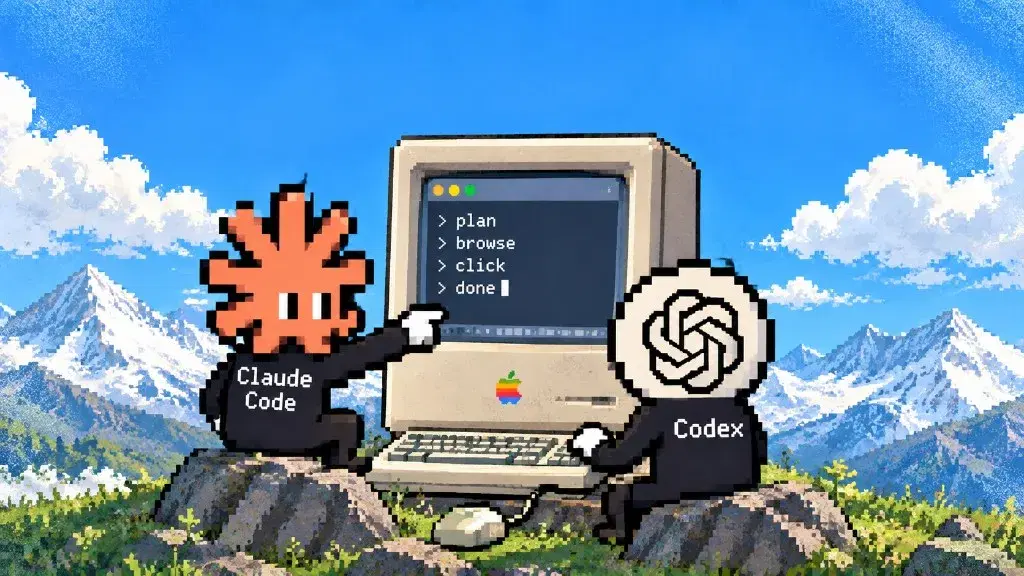
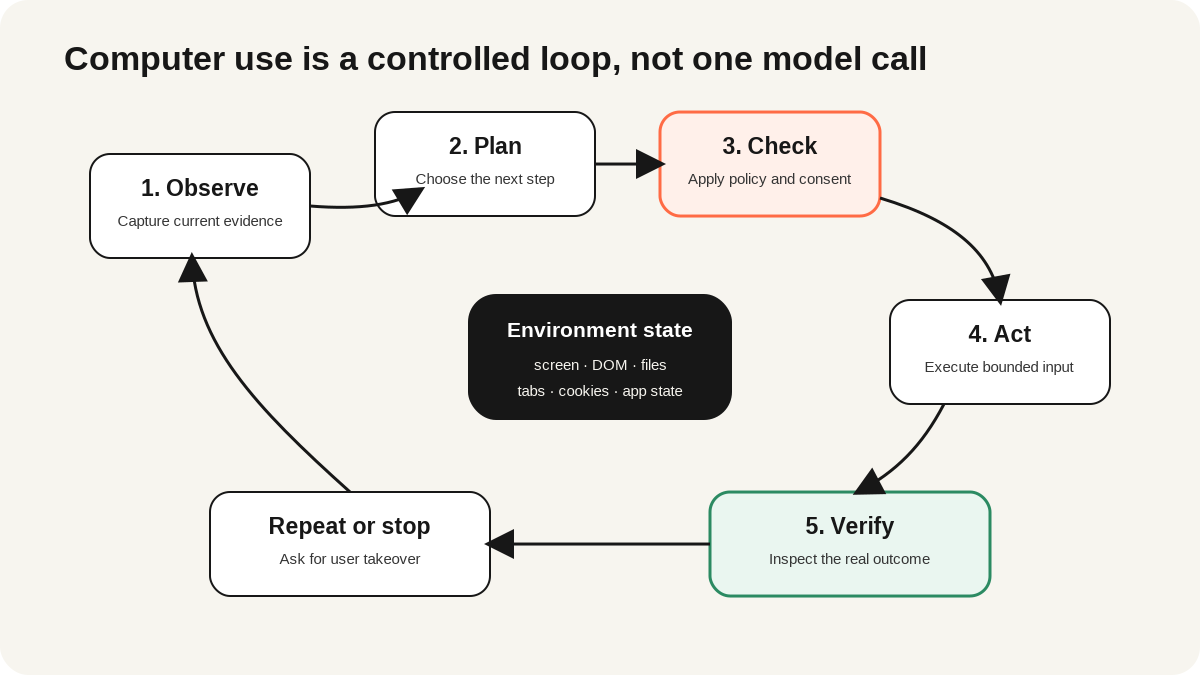
A computer use agent is software that turns a goal into actions across a graphical computer environment. It observes a screen or structured UI state, plans the next step, executes an input such as a click or keystroke, observes the result, and repeats until it can verify completion or must ask for help. The important word is agent: the system chooses a sequence rather than replaying only a fixed script.
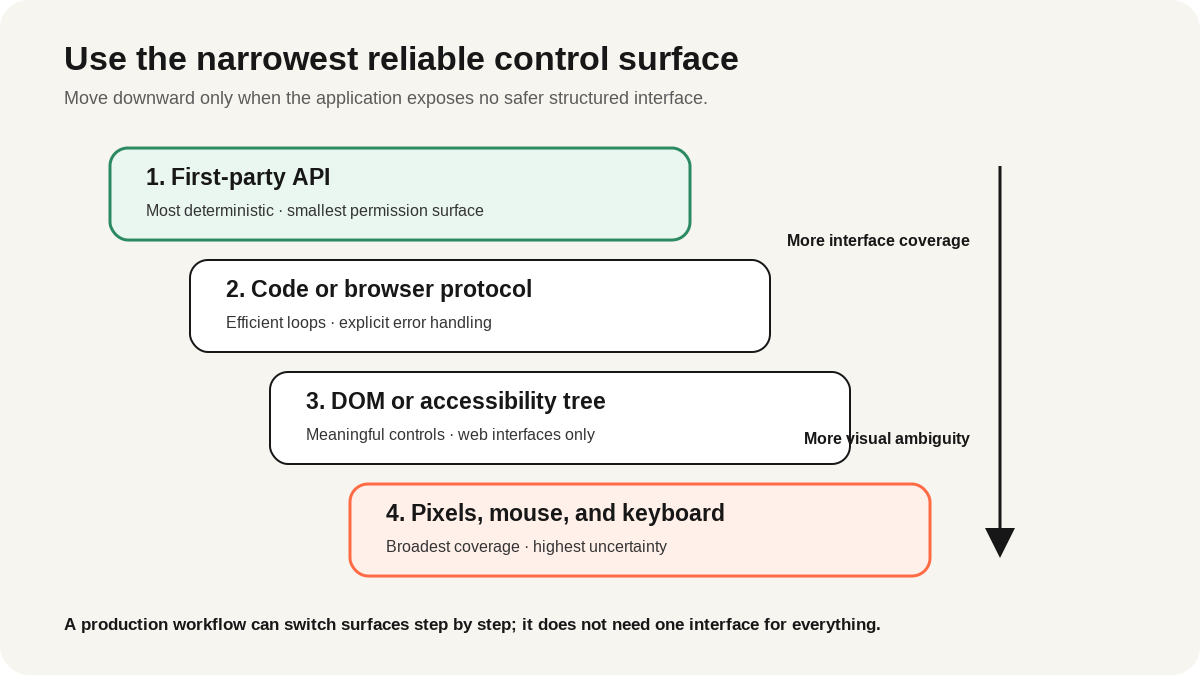
This category now spans pixels and mouse input, browser DOM and accessibility trees, browser protocols, code execution, and first-party APIs. A production design rarely chooses one interface for every step. It uses the narrowest reliable control surface, isolates state, asks for confirmation before consequential actions, and verifies the outcome independently, and ego(lite) hands the agent compact semantic snapshots and stable element references rather than pixels.
What is a computer use agent?
AWS's current computer-use agent pattern describes agents that control browsers, terminals, file systems, and applications by combining user intent, visual or textual context, reasoning, tool execution, updated state, and memory. That is broader than browser automation: opening a spreadsheet, editing a slide, moving a file, and checking the result can all be part of one computer-use workflow.
The category is useful when a system was designed for people and does not expose a complete API. It is a poor default when an API already represents the operation precisely. Clicking a Save button can work across an old internal application; calling a documented save endpoint is usually faster, easier to test, and easier to authorize.
How does a computer use agent work?
- Receive a bounded goal. The system records the requested outcome, allowed applications, prohibited actions, and completion evidence.
- Observe the environment. A screenshot, DOM snapshot, accessibility tree, application state, or tool result describes the current state.
- Propose the next action. The model selects a click, key press, command, structured tool call, or code block and explains enough for policy checks.
- Enforce policy outside the model. The host checks destination, action type, permissions, limits, and whether a person must approve.
- Execute and observe again. The environment performs the allowed action and returns a new screenshot, state snapshot, or error.
- Verify the outcome. A separate check confirms the requested state and records evidence; otherwise the agent retries within limits or stops.
OpenAI's current computer-use guide documents two implementation routes: code execution with libraries such as Playwright or PyAutoGUI, and structured computer actions that the developer executes. The guide recommends preserving environment state separately from the API conversation and returning tool results after every action. Check the current model catalog rather than assuming an old preview model remains supported.
How is it different from browser automation and RPA?
| Approach | Control logic | Best fit | Main failure mode |
|---|---|---|---|
| Deterministic browser automation | Written selectors, actions, and assertions | Repeatable testing and stable workflows | Layout or contract changes |
| RPA | Recorded or rule-based process | Structured back-office repetition | Unexpected state outside the rule set |
| Browser agent | Goal-directed planning within web interfaces | Variable, multi-step browser work | Misgrounding, prompt injection, or goal drift |
| Computer use agent | Goal-directed planning across apps and OS | Cross-application workflows with incomplete APIs | Broad privileges and hard-to-verify side effects |
For a focused comparison of autonomous browser control and tool-mediated computer use, see Browser Use vs. computer use. For deterministic frameworks and agent tools, start with the browser automation tools guide.
Which control surface should you use?
| Surface | Strength | Trade-off | Use it for |
|---|---|---|---|
| First-party API | Typed, fast, auditable | Only supported operations | Transactions and structured data |
| Code or browser protocol | Deterministic loops and compact data | Engineering and maintenance | Extraction, testing, batching |
| DOM or accessibility tree | Semantic web controls | Web-only and page-dependent | Forms, navigation, assertions |
| Pixels, mouse, keyboard | Broad interface coverage | Slow, ambiguous, harder to verify | Legacy, canvas, remote desktop, native apps |
Use the least expressive surface that reliably completes the step. An API call should not become a screenshot-and-click task. A pixel interface should not be forced onto a page whose semantic controls are available. Hybrid workflows are normal: an agent may use an API to fetch records, a browser to handle one unsupported exception, and a deterministic assertion to verify the result.
How should you manage state and credentials?
Separate four stores: conversation state, environment state, credentials, and the audit log. Conversation state holds instructions and recent observations. Environment state holds tabs, cookies, open files, and application windows. Credentials belong in a scoped secret store or an authorized session, not in prompts or screenshots. The audit log records proposed actions, approvals, results, and evidence.
Where does ego(lite) fit in a computer-use stack?
ego(lite) is for the case where the browser itself is the constraint. It runs on your own machine, so cookies, login state, and profile stay local instead of going to a hosted browser service.
It is not the model, a general desktop agent, or a substitute for a first-party transaction API. It also does not turn an authorized session into a safe one: purpose-specific accounts, site scope, action-time confirmation, and independent result checks still apply. Use a VM or a broader computer-use runtime when the workflow must control native applications or needs stronger machine isolation. Evaluate ego(lite) when browser tasks must run on a session you are already logged into, not as the entire agent stack.
What safety controls are required?
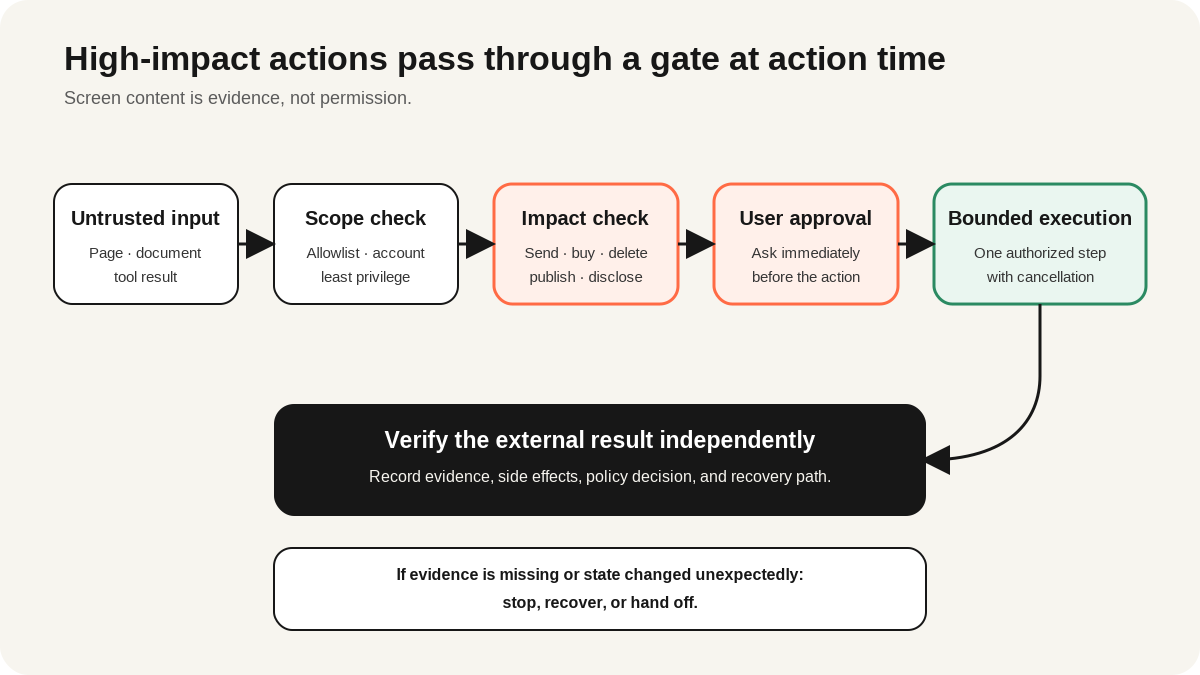
OpenAI's official guide recommends isolated environments and allowlists, treating page and screen content as untrusted, confirming consequential actions, bounding time and cost, supporting cancellation, and verifying outcomes. OWASP's excessive-agency guidance adds a useful design rule: minimize the tools, permissions, and autonomy granted to the system instead of asking a prompt to compensate for broad authority.
- Containment: run in an isolated browser or VM with explicit network and file boundaries.
- Least privilege: use a scoped account and allow only required sites, applications, fields, and actions.
- Untrusted-input boundary: page text, documents, emails, and tool output may contain instructions; they are data unless the user explicitly authorizes a change.
- Approval gates: confirm purchases, messages, data transmission, permission changes, publication, deletion, and other hard-to-reverse actions at the moment of action.
- Limits and recovery: cap steps, time, cost, retries, and side effects; provide cancel, rollback where possible, and a clean environment reset.
Use the complete architecture-specific checklist in Browser agent security risks before letting an agent touch authenticated or consequential systems.
Which screenshot and tool contract does each action use?
A computer-use integration must keep screenshot coordinates and action execution in the same declared space. Anthropic's current computer_toolset_20260801 guide defines coordinates in the pixel space of the full-display screenshots returned to the model, with the origin at the top left. A zoomed image does not change that coordinate space. If the application downscales screenshots, it must map returned coordinates back to the environment before executing them.
Do not mix tool versions when implementing that mapping. The current toolset uses fixed member names such as screenshot and left_click, with toolset_name: computer on calls and matching results. It rejects legacy declaration fields including name, display_width_px, display_height_px, display_number and enable_zoom. Earlier computer tool versions have different contracts; migrate the request and executor together.
The application executes the requested calls in order and returns one result for every tool-use identifier. A batch can contain more than one action, so preserve order, identifiers and each action's error rather than treating one successful screenshot as completion of the whole batch. Return a fresh observation when the next decision depends on changed UI state.
These rules concern the action adapter, not benchmark performance or desktop ownership. Whether a workflow can run in the background without taking the user's mouse depends on its actual executor and desktop/session setup. Test that condition explicitly on the intended environment instead of inferring it from a computer-use model or an unrelated leaderboard.
This November 12, 2026 maintenance review read the current vendor tool contract without calling a paid model or running a new desktop benchmark. In an ego(lite) workflow, a visible Space and takeover help the user inspect browser actions; the installed ego-browser runtime defines its own API. Do not copy Anthropic member-tool declarations into that runtime or treat a Space as a host sandbox. Verify the application's intended record after any write.
| Integration checkpoint | Required evidence | Failure to avoid |
|---|---|---|
| Screenshot scaling | Returned image dimensions and executor mapping | Clicking original-screen pixels with downscaled coordinates |
| Zoom | Full-display coordinate space remains authoritative | Treating zoom-image pixels as a new origin |
| Tool version | Matching declaration, member calls and results | Combining legacy display fields with the current toolset |
| Background claim | Observed focus and input behavior on the real executor | Inferring mouse isolation from a model score |
- Anthropic current computer-use action and coordinate contract
- Browser outcome verification
- ego(lite) setup and execution guide
How do you evaluate a computer use agent?
The original OSWorld benchmark created reproducible desktop tasks across real applications and execution-based evaluation. OSWorld 2.0, released in June 2026, adds 108 long-horizon workflows and warns evaluators to pin code, task, asset, and website releases together. That versioning discipline matters more than repeating a leaderboard score: environment drift can make two numbers incomparable.
| Metric | Question | Evidence |
|---|---|---|
| Task success | Did the required state change occur? | Independent assertion or source check |
| Policy compliance | Did it stay inside scope and approvals? | Action log and denied-action tests |
| Side effects | What changed beyond the goal? | Before/after state and audit events |
| Efficiency | How many steps, seconds, and model tokens? | Environment and model telemetry |
| Recoverability | Can a person cancel, inspect, and resume? | Injected failures and recovery drills |
Ego's Real-World Bench is a narrower browser-focused example: 31 live-site tasks, the same model and judge, raw logs, screenshots, and binary rubrics. Its published results help compare the measured configurations; they do not establish a general desktop-agent success rate.
What does a production workflow look like?
- Pick a task with a clear business owner, reversible failure, and machine-checkable outcome.
- Capture a small versioned task set, including access denial, stale state, injection, timeout, and cancellation cases.
- Use APIs and deterministic code for stable steps; add computer use only at the interface gaps.
- Run read-only in an isolated environment, then add one action class at a time behind explicit policy checks.
- Require a proposal and human confirmation for consequential actions; do not authorize a category with one blanket click.
- Verify the final state independently, retain the evidence needed for review, and measure accepted outcomes per total cost.
If your implementation is specifically OpenAI-based, the current GPT-6 Astra computer-use guide covers the model-specific path. This page intentionally remains the vendor-neutral architecture pillar.
FAQ
What can a computer use agent do?
It can observe and operate browsers, desktop apps, files, terminals, and remote environments within the tools and permissions its host provides. Capability is not authorization; each workflow still needs explicit scope and controls.
Is a browser agent the same as a computer use agent?
A browser agent is the web-focused subset. Computer use can span native applications, operating-system controls, files, and cross-app workflows as well as browsers.
Should an agent use pixels or the DOM?
Prefer structured surfaces when they are reliable: APIs, browser protocols, DOM, and accessibility data are easier to target and verify. Use pixels when a stable structured surface does not exist or visual evidence is itself required.
Can a computer use agent reuse my login?
Some environments can use an authorized session, but that expands what the agent may reach. Use a scoped profile or account, isolate the task, keep credentials outside model context, and require confirmation for consequential actions.
Are computer use agents reliable enough for production?
They can be useful for bounded workflows with fallbacks and verification. Do not infer production readiness from a demo or one benchmark score; test your exact applications, permissions, failure states, latency, cost, and recovery path.
What should always require confirmation?
Purchases, external messages, publication, data transmission, permission changes, account changes, deletion, and any action that is destructive, regulated, or difficult to reverse should be confirmed at the point of action.