How to use ego(lite) with Codex
Set up Codex browser automation with ego(lite). Load the installed Skill, permit local browser commands, and verify a completed task.
Codex can control ego(lite) from either its desktop app or terminal interface. In this guide, Codex opens Anthropic's X profile in an ego(lite) agent Space, reads the first five posts, and returns the result in the conversation.
The complete video above follows the Desktop workflow. The TUI uses the same ego-browser skill and task instructions.
Before you start: install ego(lite)
Install ego(lite) and finish onboarding before you open Codex.
- Download the DMG and open it
- Follow the instructions and double-click the ego(lite) icon to install
- Open ego(lite) and finish onboarding
- Open Codex Desktop, or install the Codex CLI for your terminal
After setup, check that Codex can find the ego-browser Skill under ~/.agents/skills/ego-browser/. If the Skill does not appear in Codex, reopen the application and check its Skill list.
Choose Codex Desktop or the TUI
For Desktop, open a project and start a new task. For the TUI, open Terminal in the project directory and run:
codexThis starts a local Codex session. Its permission policy needs to allow the ego-browser command used for the task. You can use the same Skill and task prompt in both interfaces.
Step 1: switch to Codex mode
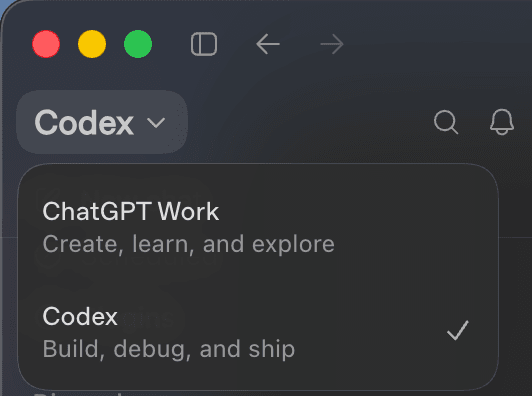
In the recorded ChatGPT desktop workflow, select Codex in the top-left mode switcher before starting. If you're using the Codex TUI, skip this step.
Step 2: allow the local browser command
Desktop
The Desktop recording uses Full access, selected from the permission menu beside the prompt. Use the execution permission allowed for your environment and inspect any command error rather than assuming that every installation requires the same mode.
Codex needs to run the local command and communicate with ego(lite). In our fresh CLI check, read-only sandbox mode completed the title, URL, and screenshot task with the browser already running. That does not test a fresh app launch in every permission mode.
TUI
For the Codex TUI, start a new session with:
codexStep 3: load the ego-browser skill
Desktop
Type /ego in the Codex prompt box and choose ego-browser from the skill picker. You can also type /ego-browser and press Tab to activate the skill.
Once this Skill is loaded, Codex can create an Agent task Space or resume its own current task, then open and operate Pages there. Controlling a user-owned Space requires your explicit instruction. It won't take over your personal tabs. If it doesn't appear, finish ego(lite) onboarding and restart Codex before trying again.
TUI
In the TUI, enter /ego, choose ego-browser, and add the browser task. The Skill then starts ego(lite), creates an agent Space, and operates the page inside that Space.
Step 4: let Codex work in the browser
Now hand the task to Codex. The agent will use ego-browser to open the target page in ego(lite), collect the requested information, and return the result when the task is complete.
Step 5: complete the task
When the run finishes, Codex returns the five posts with their visible details, direct links, and a short summary of each post. The Agent saves the result before finishing its Space. The Agent keeps a source Page only when you explicitly ask, or when it must remain open for you to view or continue the result.
Connect Codex to your web app
Give Codex the exact application URL, the account or workspace it should use, and the interaction you want checked. A reachable browser is only the first step; Codex must prove it reached your application and observed the requested behavior.
Use ego-browser to open http://127.0.0.1:3000 in one task Space.
Confirm the page title and the signed-in test account before changing anything.
On the test application, search for the supplied record and report its ID,
visible result and source URL. Save a screenshot of the result.
If the server cannot be reached or the account differs, stop and report it.
Do not publish, delete records or contact real users.
Replace the address and task with your own application. A remote or cloud Agent cannot reach a server running only on your laptop's loopback address. Run the Agent and development server where they can reach each other, or use an explicitly approved test URL.
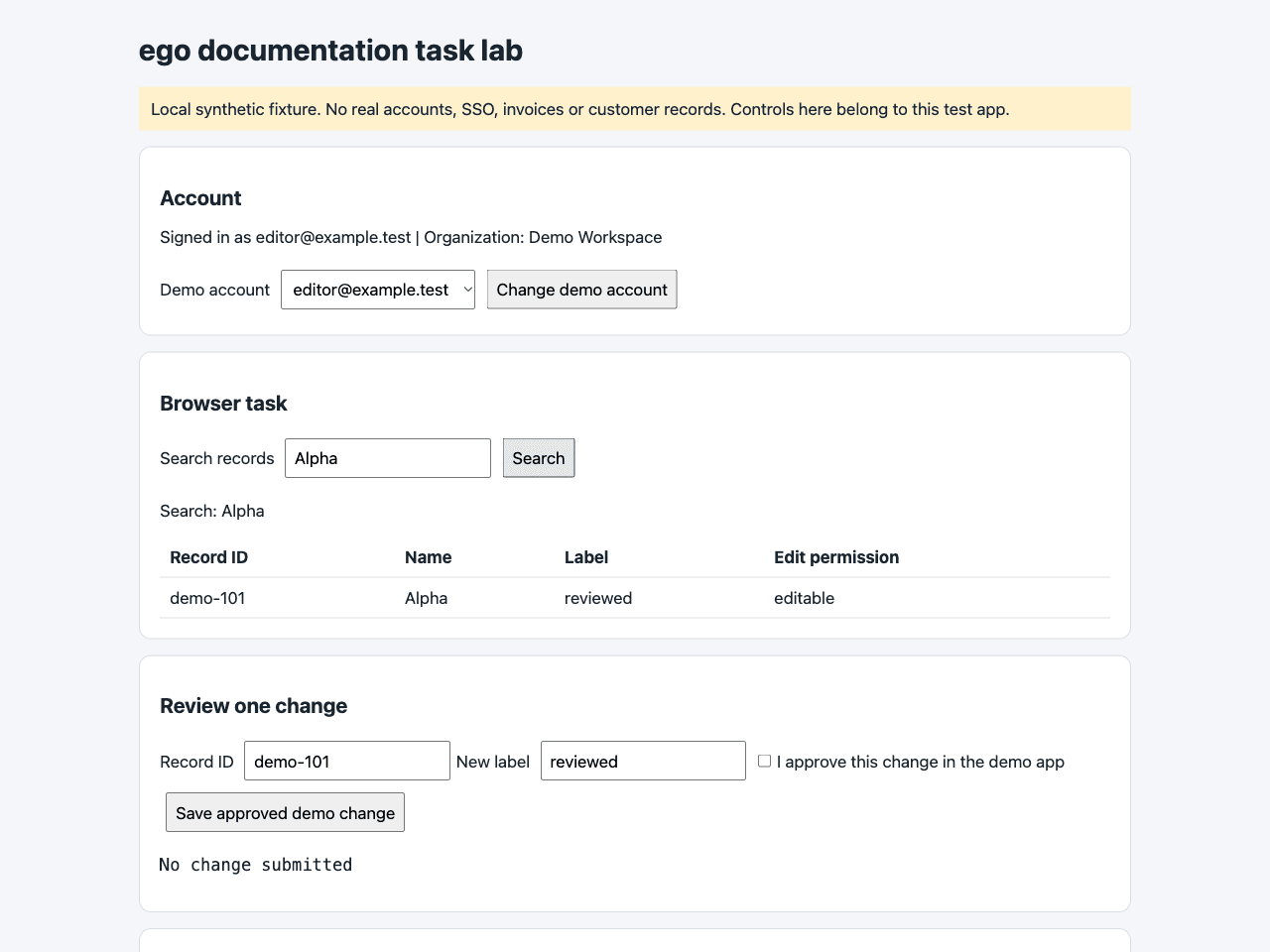
Codex desktop + ego-browser 0.6.3.6, November 9, 2026. This local fixture run verified navigation, search and result reading. The screenshot does not establish support for every framework or debugger.
Identify the permission you need
The recorded setup above uses Full access. It is a broad host permission mode, not an ego website approval rule. If your Codex environment can approve the required local command individually, use that approved command path. If a sandbox blocks the browser connection, read the specific denial before changing permissions. OpenAI's security documentation explains how sandboxing and approvals differ.
After the browser starts, account selection and allowed business operations still need to be stated in the task. Full access does not establish that a CRM change or form submission is appropriate.
Use Codex in VS Code
Use the Codex IDE extension in a local VS Code window where terminal commands run on the same computer as ego(lite). A Remote SSH, development container, or WSL terminal is a different execution environment. Installing a Skill on your Mac does not install it inside that environment.
- Finish ego(lite) onboarding, then start a new Codex session so it can discover the installed Skill.
- Confirm that
ego-browser skillruns in the environment Codex is using. - Ask Codex to read the installed ego-browser Skill and use it for the task. If it chooses a different browser tool, name ego-browser explicitly.
- Test with a public page before a private account:
Use ego-browser to open https://example.com in ego (lite). Return the page URL and title from the browser. Do not infer them from source files or use another browser tool.The title and URL prove a browser observation. A Skill file being present proves only installation. If the extension cannot execute local commands under your organization's policy, use an approved local execution environment rather than adding an MCP configuration for a tool you did not intend to use.
The new Page API examples were executed through Codex-driven commands on macOS. This page does not claim a fresh VS Code or Windows execution from that test. OpenAI's Skills documentation describes discovery, and its IDE documentation describes the extension environment.
Troubleshooting
ego-browser doesn't appear
Finish ego(lite) onboarding, quit Codex, and open it again. Type /ego and choose ego-browser. The installed skill should be in ~/.agents/skills/.
Codex loads the skill but ego(lite) doesn't open
ego-browser skill should run in a terminal on the same computer. If it runs there but Codex refuses the command, inspect the reported sandbox or approval denial and authorize the required local command under your organization's policy. The recording uses Full access, which is one configuration. If the command itself is missing, finish ego(lite) onboarding and reopen the terminal. If the model provider rejects the selected model before issuing a command, select a model available to the account before diagnosing the browser connection.
X asks you to sign in or verify the account
Take over in the ego(lite) agent Space and complete the login or verification yourself. Then tell Codex to continue in the same Space. Never paste a password or verification code into the prompt.
Go deeper
- Quick start: install ego(lite) and run your first browser task
- Claude Code browser automation: switch from Cowork to Code and set its permissions
- Cursor browser automation: run ego-browser from Cursor Agent
- ego-browser: learn the browser helper commands
- Space: see how agent Spaces stay separate from your own tabs
- How Codex sandboxing and approvals work: read OpenAI's current safety guidance
Verified CLI connection
On November 9, 2026 (UTC), Codex CLI 0.155.1 with GPT-6 Sol loaded the installed Skill, ran the current guide, opened the local fixture, returned its actual URL and title, saved a screenshot, and finished its own task once. The CLI used read-only sandbox mode on macOS, with ego(lite) 0.6.3.6 already running.
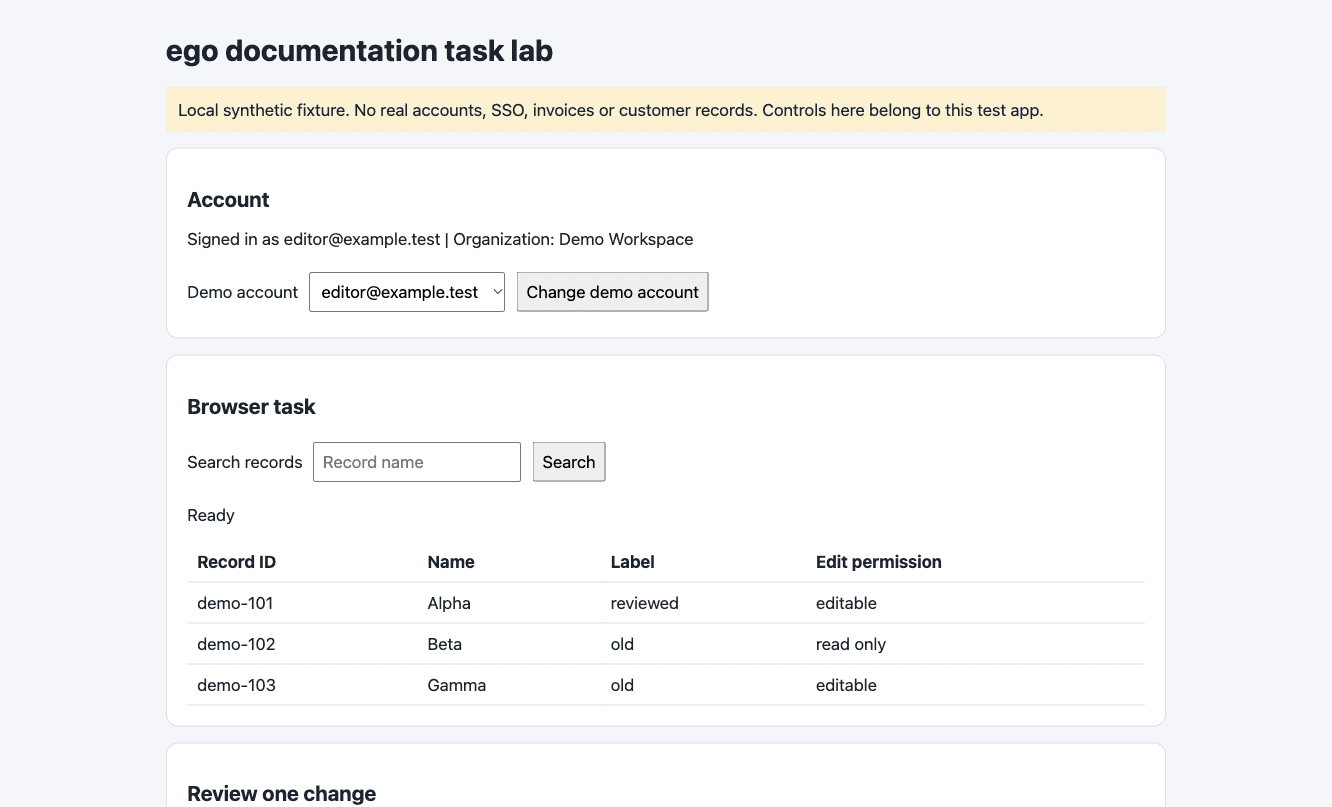
This verifies the CLI connection and browser result. The VS Code extension, native Windows execution, imported accounts, and a fresh app launch require their own checks.