Snapshot
Choose between a semantic snapshot, DOM extraction and a screenshot for the question you need to answer.
Use a Snapshot to find controls and understand the current page. Use DOM extraction when you need structured fields from many rows. Use a screenshot when the answer depends on visual content, such as a chart painted on a canvas. No single representation contains everything on every website.
Choose an observation method
A Snapshot is structured page text built from browser semantics, including control roles, names and temporary refs. It avoids sending raw scripts and styles to the model. Its size depends on the page and scope; there is no fixed token count.
Read the current page
console.log(await page.snapshot());The default snapshot covers the viewport. If it says more content exists below the viewport, that content was omitted from this capture, not proven absent. Read the full page when needed:
console.log(await page.snapshot({ scope: 'full_page' }));A snapshot can include visible iframe content. To focus on one iframe, use the ref printed on that iframe's line:
console.log(await page.snapshot({ scope: 'subtree', root: '@59' }));Replace @59 with the iframe ref from the current snapshot. Subtree observation does not permanently scope later actions to that frame.
A subtree observation does not make later CSS selectors frame-specific. An actionable match in the top document takes precedence.
Use refs while they are current
An interactive control may appear as textbox [ref=21]. The Agent can act on it with await page.fill('@21', 'Alpha'). Refs belong to the Page state they were observed in. After navigation or a dynamic update, take another snapshot before choosing the next unfamiliar control.
For a repeated workflow, a stable selector from an inspected page can be more useful than storing a ref. A saved @21 is not a reusable description of a business field.
Extract structured data
After identifying a real table, extract fields inside the Page:
const rows = await page.evaluate(() =>
  [...document.querySelectorAll('#rows tr')].map(row => ({
    id: row.dataset.id,
    name: row.cells[1].textContent.trim(),
    label: row.cells[2].textContent.trim(),
  }))
);
console.log(rows);
This example uses our synthetic task lab (ZIP). Extract the archive and run lab.py with Python 3 and open http://127.0.0.1:48763/lab in the task Page before extracting its rows. A different application needs its own inspected selectors. Check which rows were loaded and whether filtering or pagination hides additional records before calling the output complete.
Inspect embedded controls
Our November 9 fixture loaded a frame from a different origin, filled its note field, and observed its saved state. The same fixture exposed an open shadow root with another field and save button. The tested selectors reached both. This is evidence for these controlled cases, not every nested payment, CRM, or third-party widget.
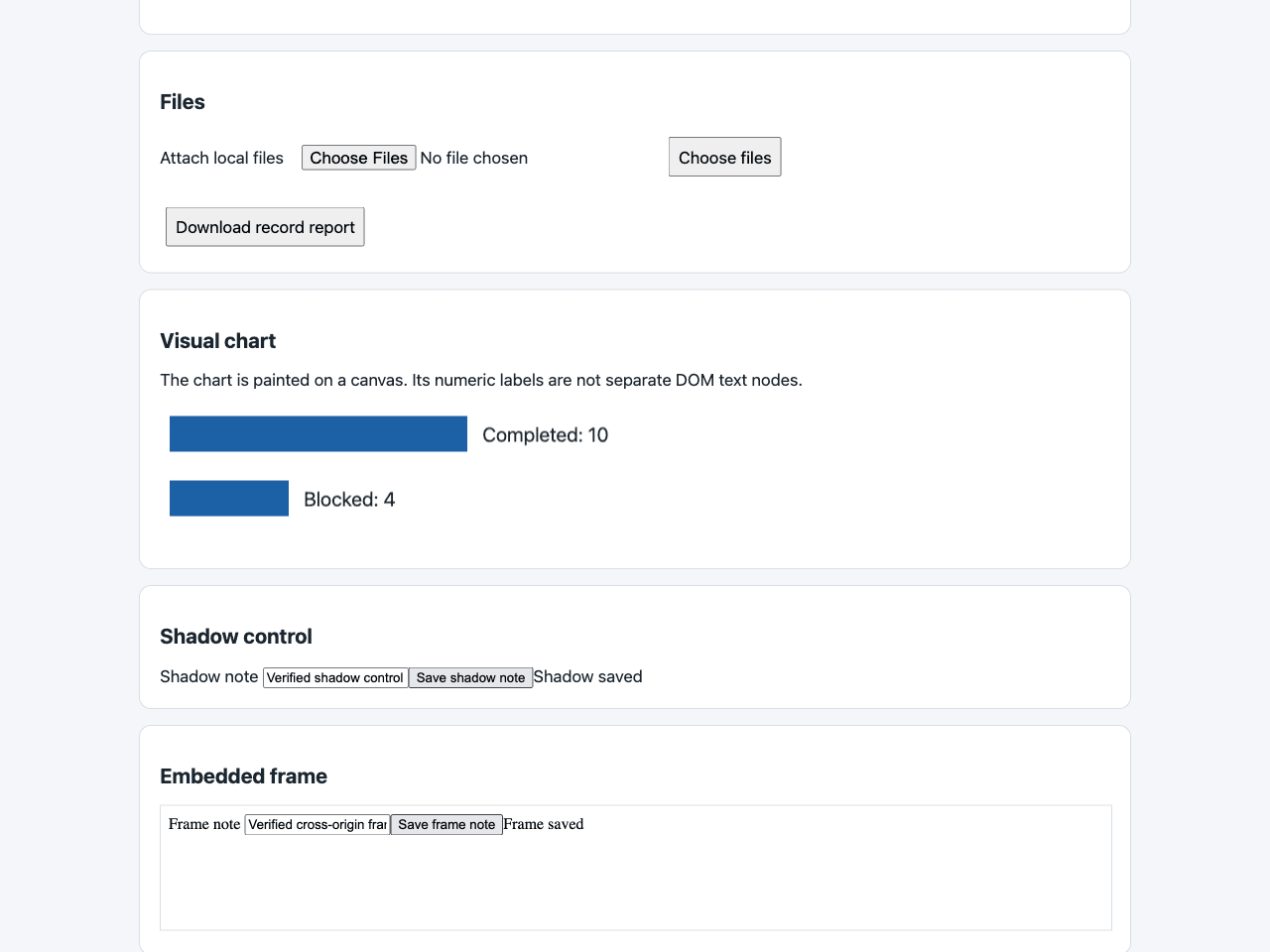
Captured with Codex, ego-browser, and ego(lite) 0.6.3.6 on macOS on November 9, 2026. The main page used 127.0.0.1 and the iframe used localhost on a second port. The fixture contains synthetic data.
Inspect visual content
await page.screenshot({ path: '/absolute/path/chart.png' });A screenshot captures pixels. It does not turn those pixels into verified numbers by itself. Read the image and compare it with an accessible table or source data when available.
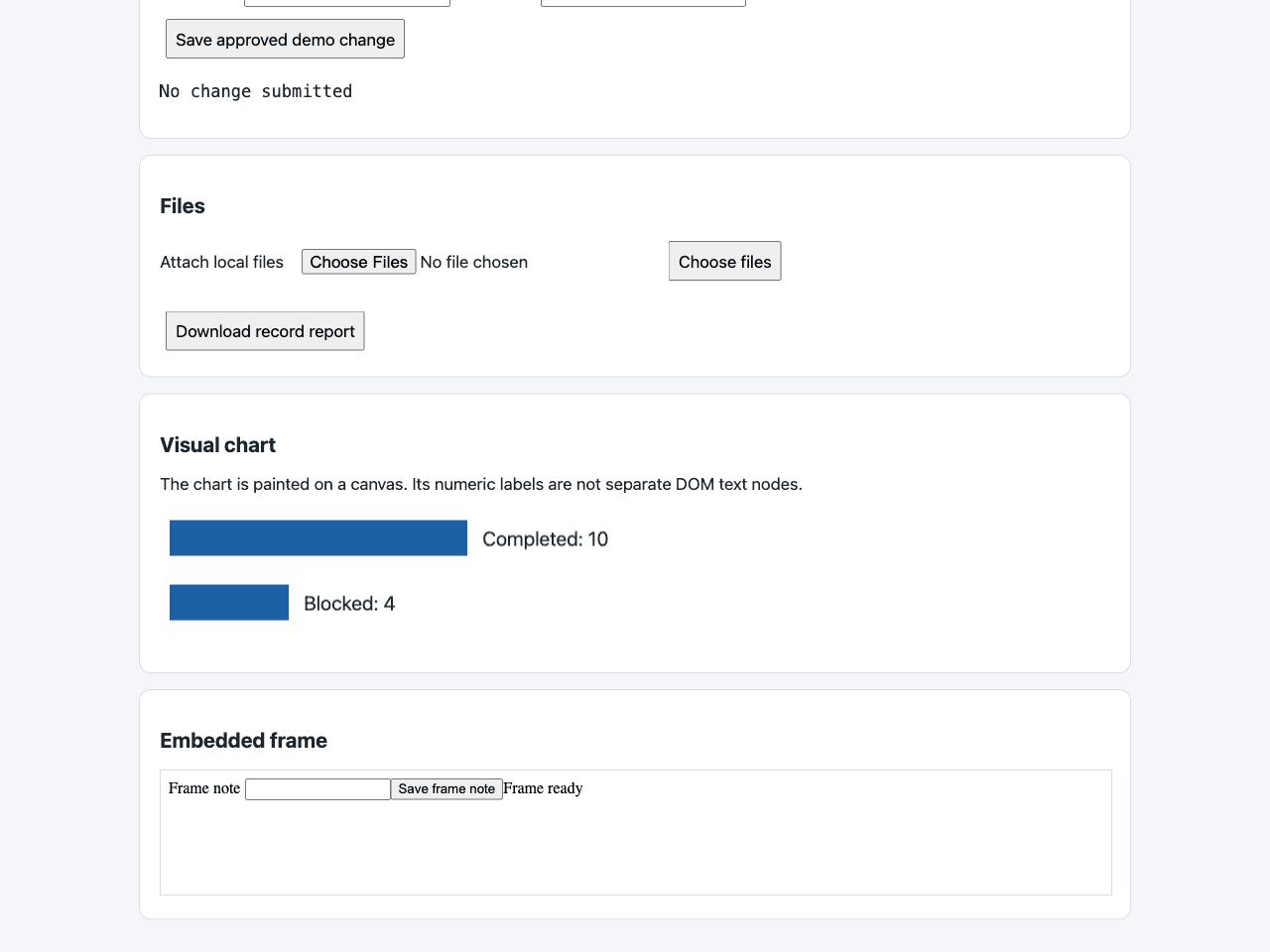
Codex desktop + ego-browser 0.6.3.6, November 9, 2026. In this local test, the full-page snapshot included the frame's form controls. The canvas labels “Completed: 10” and “Blocked: 4” were visible in the screenshot but were not DOM text or snapshot text. That is why the Agent needed a visual observation for this chart.
Keep only the information the next action needs
Use the viewport for a nearby control, a full-page Snapshot for a document search, and a frame subtree for an embedded form. For a table, return its relevant rows and columns through page.evaluate().
The size depends on the page and observation range. A short Snapshot on a simple page is not a universal token budget. If you are comparing tools, record the model, input format, retries, and total task usage alongside the observation size.
The examples follow guide 2.2.1. Run ego-browser skill to check the current installed API. ego-browser covers navigation, file handling, and task completion.
Verify an action's result
Choose the observation that answers the completion question. After saving a record, read its saved ID and value. After downloading a report, inspect the file. After a layout change, inspect the relevant screenshot area. A successful click or an unchanged snapshot is not sufficient proof that a business operation finished.