ego-browser
Install the browser runtime, load the matching usage guide, and run a verified page task.
ego-browser lets your coding Agent operate pages in ego(lite). Install ego(lite), load the Skill in your Agent, and run ego-browser skill before writing browser code. That command prints the usage guide supplied by the ego-browser command on your PATH. If more than one release is installed, check which executable that command resolves to before choosing its API reference.
The examples on this page use the TaskSpace/Page API from usage guide 2.2.1, checked with ego(lite) 0.6.3.6 on macOS on November 9, 2026. Windows users should read the guide printed by their own installation before running a script.
Install the runtime
Install ego(lite) and finish onboarding. After setup, check that your Agent can discover the browser Skill. The Skill teaches the Agent how to use the browser; it does not replace the browser application.
In Terminal, run:
ego-browser skillThe output must end with [ego-browser:skill] end of guide. If your terminal truncates it, save the output to a file and let the Agent read the file in parts. If the command cannot be found, finish browser onboarding and reopen the terminal or Agent application. Codex and Claude Code cover the host-specific setup.
The runtime accepts JavaScript through standard input. On macOS, use a heredoc:
ego-browser nodejs <<'JS'
const task = await taskSpace('Read example page');
const page = task.page('p1');
await page.goto('https://example.com');
console.log(await page.snapshot());
console.log({ title: await page.title(), url: await page.url() });
await task.finish({ keep: [] });
JS
In PowerShell, the equivalent input form is a single-quoted here-string piped to ego-browser nodejs. Read the Windows installation's guide for its current commands. The macOS test on this page does not establish a Windows test result.
Continue the same task
The complete example above finishes its task. The resume examples below apply to a task that is still in progress. A new task Space already has Page p1. Keep the printed spaceId and Page labels for later script invocations. Resume with the numeric ID instead of creating another Space when a page is slow or an operation fails:
const task = await taskSpace(123); // Replace with the ID printed for your task.
const page = task.page('p1');
console.log(await page.snapshot());
Do not rely on JavaScript variables surviving between invocations. Resume browser Pages by their recorded Space ID and Page label, and load local configuration explicitly. Use absolute paths for local files because the script does not run in your shell's working directory or inherit your shell's environment variables.
Read, act and verify
Start with a snapshot and act on a control it identifies. After a search, submission or navigation, wait for the state you requested before reading the result:
await page.fill('#query', 'Alpha');
await page.click('#search', { label: 'filter demo records' });
await page.waitForSelector('text=Search: Alpha');
const result = await page.evaluate(() =>
  document.querySelector('#search-result').textContent
);
console.log({ result });
These selectors belong to our optional local task lab (ZIP). Download and extract the archive, then run lab.py with Python 3, and open http://127.0.0.1:48763/lab before using this search example. The lab requires Python; ego(lite)'s runtime itself does not. These selectors do not apply to arbitrary websites. On another application, take a snapshot and use that application's actual control names or selectors. A click receipt confirms dispatch; it does not prove a record was saved. Read the resulting record or downloaded file to establish completion.
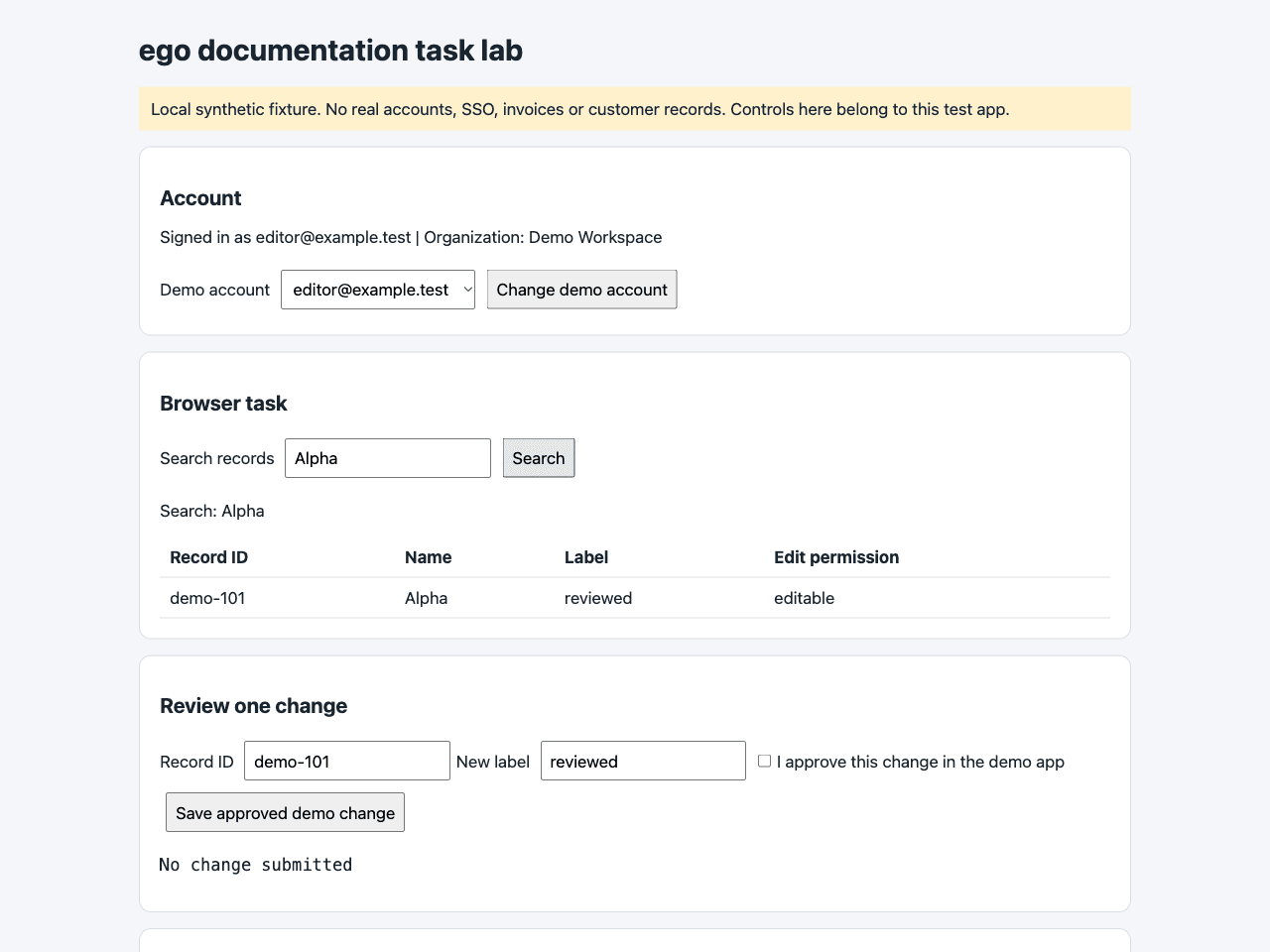
Codex desktop + ego-browser 0.6.3.6, November 9, 2026. This is our synthetic local application, with no customer records or external writes.
page.snapshot() covers the viewport. Use page.snapshot({ scope: "full_page" }) for the full document. Omitted content below the viewport is not proven absent. Snapshot covers frames, open shadow roots and temporary refs.
Choose the execution context
Code in the ego-browser nodejs script runs in Node.js. Code passed to page.evaluate() runs inside the web page. Pass page inputs as the second argument; page callbacks cannot read variables from the surrounding Node.js script.
Use await import('node:fs/promises') for files, page.evaluate() for DOM extraction, and the documented Page methods for browser interaction. page.fetch() uses the Page's browser context and follows browser CORS rules. Standard Node.js fetch() does not inherit that Page's signed-in session.
Use only methods in the installed guide. This is a custom API, so Playwright methods such as locator() or getByRole() are not interchangeable with it. All time values in the TaskSpace/Page guide are milliseconds. Older helper examples may use different units; do not combine them without checking their own signatures.
Upload and download local files
Set an existing file input with absolute paths:
await page.setInputFiles("input[type=file]", ["/absolute/path/report.csv"]);If a button opens a chooser, start waiting before clicking:
const choosing = page.waitForFileChooser({ timeout: 10_000 });
await page.click("button.upload");
const chooser = await choosing;
await chooser.setFiles("/absolute/path/report.csv");
For a download, arm the event before the action and save it in the same invocation:
const pending = page.waitForEvent("download", { timeout: 30_000 });
await page.click("button.download");
const download = await pending;
await download.saveAs("/absolute/path/report.csv");
const fs = await import("node:fs/promises");
const text = await fs.readFile("/absolute/path/report.csv", "utf8");
console.log({ name: download.suggestedFilename(), bytes: Buffer.byteLength(text) });
The file is saved on the computer running ego-browser, not automatically in a remote coding container. Check the expected file contents as well as its name. Browser-owned choosers are different from permission prompts and other native dialogs that need a person.
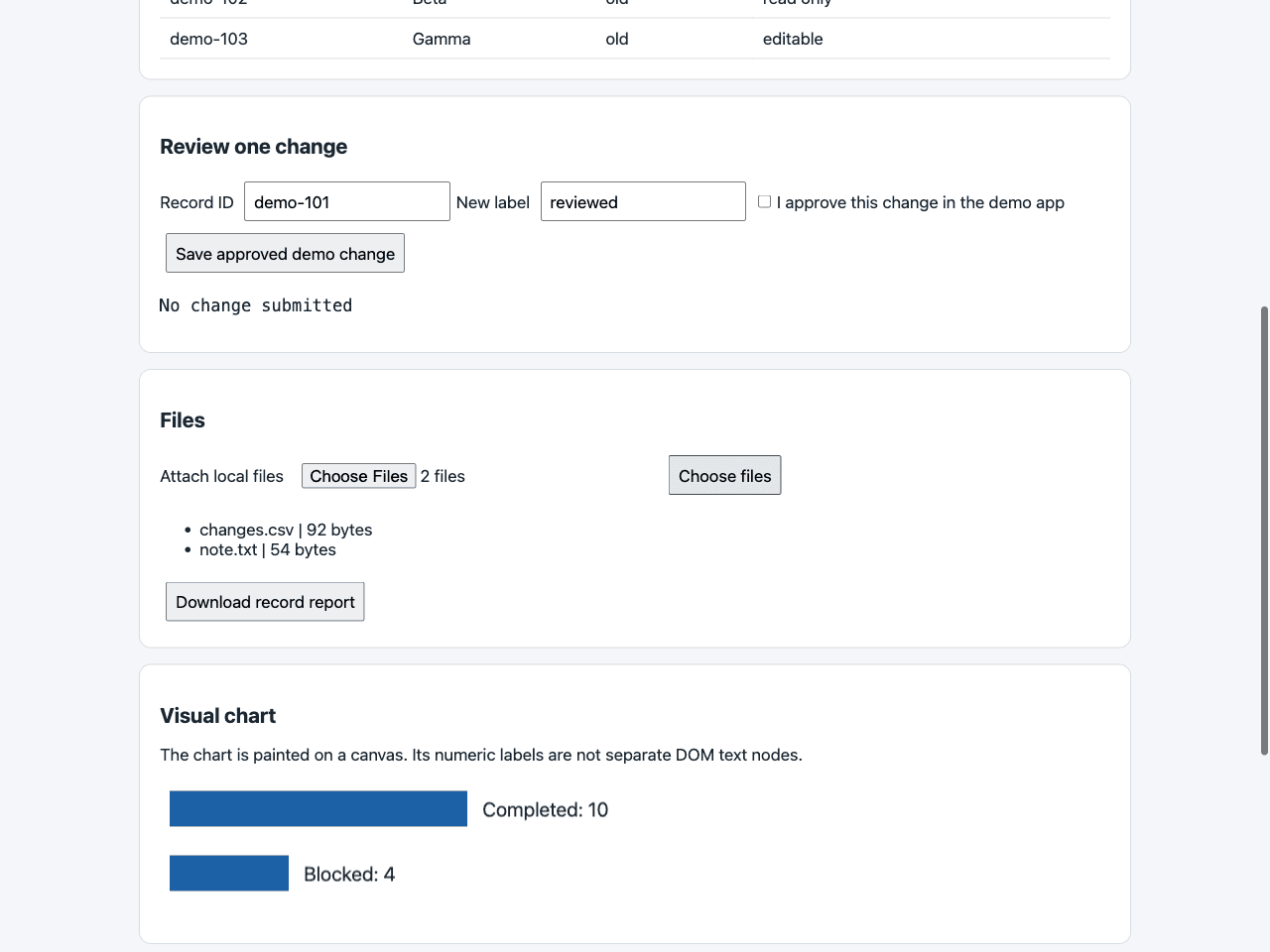
Our November 9 test used Codex, ego-browser, and ego(lite) 0.6.3.6 on macOS. It selected two local files, intercepted a chooser, processed three synthetic records, and read the downloaded CSV from disk. The fixture enforced its own edit permissions. This was not a test of a product-wide transaction approval system.
Pause for the user
When authentication, verification, or a browser-owned permission prompt needs the user, hand over and end the invocation:
await task.handOff();Tell the user what to complete. After the user confirms, resume the same Space:
const task = await takeOverTaskSpace(theSameSpaceId);
const page = task.page("p1");
console.log(await page.snapshot());
Recheck the account and target page before continuing. Do not paste passwords, cookies, or verification codes into the model conversation. Space explains control, account state, and task cleanup.
Save a script for another run
Keep repeatable code in a local .mjs file and pass it to ego-browser nodejs through stdin. Use absolute paths when the script reads configuration or writes results. The runtime does not inherit shell environment variables, and its working directory is not the shell directory.
ego-browser nodejs < /absolute/path/read-report.mjsA saved script still needs current selectors, login state, and result verification. Skills separates this available workflow from automatic Experience accumulation.
Diagnose an unexpected result
If a selector times out, inspect the current page before repeating an action. Confirm the URL, login state, whether the target is inside a frame, and whether a manual prompt appeared. Do not create another Space to hide a failed invocation.
All timeout values in this Page API are milliseconds. Read the installed guide before using an older helper's seconds-based options. help("page.click") prints its own documentation. Use console.log() for the result of your task.
Finish the task
Call await task.finish({ keep: [] }) once, after saving the result. It closes Agent-managed Pages by default. Keep a result Page only when the user explicitly asks, or when it must remain open for the user to view or continue the result. Put only the necessary Page labels in keep. User-created and unknown-origin tabs are protected. Page labels stop being usable after finish().
The runtime still exposes compatibility helpers such as useOrCreateTaskSpace and snapshotText in the tested version. Their presence does not make them invalid, but their names, lifecycle and timing conventions differ from the TaskSpace/Page examples above. Use the guide returned by your own installation as one consistent reference.